

Table of Contents
- Why Printer Ink Dries Out Quickly
- How to Stop Printer Ink from Drying Out
- How Long Does Printer Ink Last Before Drying
- Can You Revive a Dried-Out Ink Cartridge
- How to Fix a Dried Ink Cartridge: Step-by-Step
- Inkjet vs. Laser: Why Ink Drying Matters Differently
- Preventing Future Ink Drying: Best Practices
- Frequently Asked Questions
Last Updated: October 9, 2026
Why Printer Ink Dries Out Quickly
Printer ink dries out when your cartridge sits unused for weeks or months. The ink inside evaporates through the printhead nozzles, leaving behind dried residue that clogs the tiny openings.
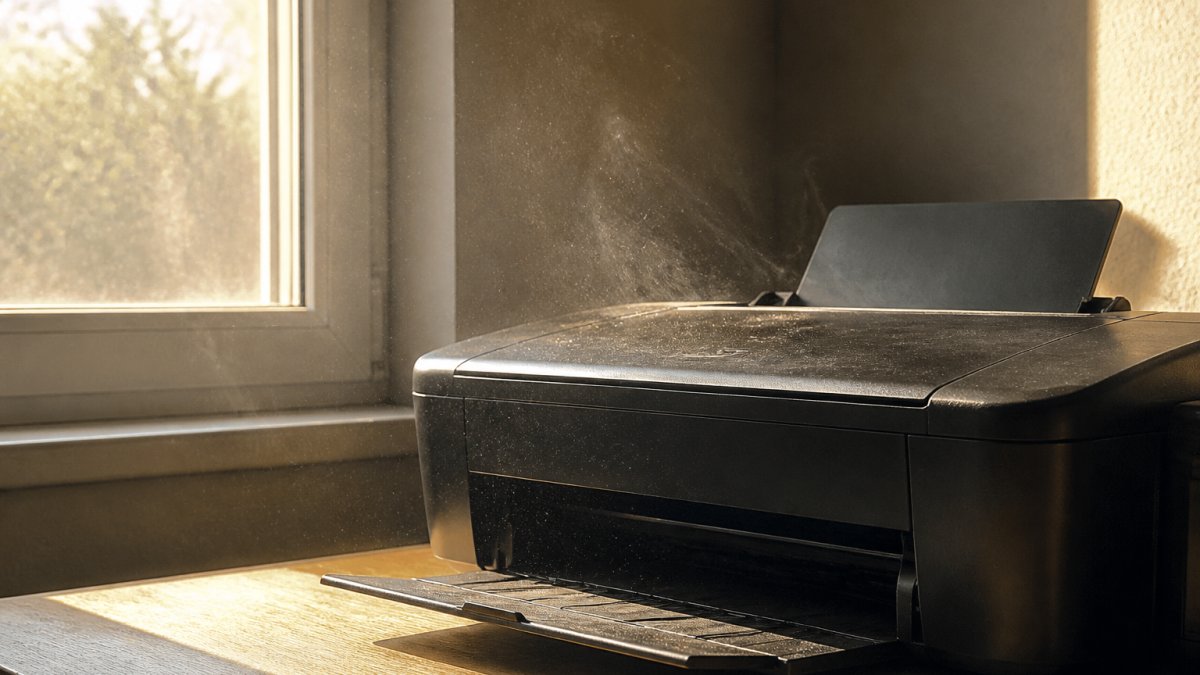
At Dabbous Mega Supplies, we've helped customers across Lebanon solve this exact problem. The good news: it's preventable. Understanding why printer ink dries out quickly puts you in control.
The core issue comes down to physics and design. Inkjet printers use liquid ink that flows through microscopic nozzles. When those nozzles sit exposed to air for extended periods, the liquid evaporates.
How Ink Evaporates at the Printhead Nozzles
The printhead is the most vulnerable part of your printer. It contains hundreds of tiny nozzles, each smaller than a human hair. These nozzles must stay wet to function properly.
When you don't print for weeks, several things happen:
- Ink inside the nozzles begins to evaporate into the air
- The remaining ink thickens and hardens
- A dried crust forms that blocks ink flow completely
- The cartridge may still have plenty of liquid ink inside, but it can't reach the nozzles
Think of it like leaving paint in a brush for a month. The bristles dry out and harden, even though the paint can is still full.
Environmental Factors That Speed Up Drying
Your room's temperature and humidity directly affect how fast printer ink dries out. Hot, dry environments are the enemy.
High temperatures accelerate evaporation.
Low humidity pulls moisture from the ink. Desert-like conditions in your office or home create the perfect storm for dried cartridges.
Air exposure matters too. When cartridges sit outside their protective packaging, exposed to open air, drying accelerates.
Direct sunlight is particularly damaging. UV rays heat the cartridge and speed evaporation. Keep your printer away from windows and bright light sources.
The Role of Infrequent Printer Use
This is where most people get caught off guard. Printers designed for regular use suffer when they sit idle.
If you print fewer than 5-10 pages per month, your cartridges are at serious risk. The ink in the nozzles doesn't move, doesn't get refreshed, and sits stagnant.
Many home offices and small businesses print sporadically. They might print once or twice a week, then nothing for days. This on-and-off pattern is harder on cartridges than consistent printing.
Seasonal printers are especially vulnerable. If you print heavily one month, then barely at all the next, your cartridges suffer.
How to Stop Printer Ink from Drying Out
Prevention is far easier than fixing dried cartridges. These strategies work for any inkjet printer.

Print Regularly to Maintain Ink Flow
The simplest fix is also the most effective: print something every week or two.
You don't need large print jobs. Even printing a single test page keeps ink flowing through the nozzles. The act of printing forces ink through the system and prevents stagnation.
Set a reminder to print at least one page every 7-10 days. Print a document, a photo, or a test page. This single habit prevents most drying problems.
For offices that print irregularly, assign someone to print a test page on Monday morning. Make it part of the routine.
Control Your Printer's Environment
Where you place your printer matters as much as how often you use it.
Keep your printer:
- Away from direct sunlight
- Away from heat sources (heaters, radiators, sunny windowsills)
- In a room with moderate humidity (40-60% is ideal)
- At room temperature, not in a hot attic or cold basement
- Away from drafty areas that dry out the air
If your office tends to be very dry, consider a small humidifier near the printer. Even raising humidity from 25% to 40% makes a noticeable difference in cartridge lifespan.
Temperature stability matters too. Don't move your printer between hot and cold rooms frequently. Temperature swings cause condensation inside the cartridge, which can damage the ink.
Proper Storage and Shutdown Procedures
If you're storing your printer for more than a month, prepare it properly.
Before long-term storage:
- Run a full cleaning cycle (see instructions below)
- Print a test page to confirm everything works
- Leave the printer powered on for the final 10 minutes, then shut it down normally
- Cover the printer with a dust cover or cloth
- Store in a climate-controlled room, not a garage or attic
When you power down your printer normally, it parks the printhead in a capped position. This protective cap seals the nozzles and minimizes air exposure. Never force the printer off without letting it shut down properly.
If you're storing cartridges separately, keep them in their original sealed packaging. Never open a cartridge until you're ready to install it.
How Long Does Printer Ink Last Before Drying
The timeline depends on your specific printer model and environmental conditions.
In ideal conditions (moderate temperature, 40-60% humidity, regular use), printer ink can last 2-3 years before noticeable drying occurs.
In poor conditions (hot room, low humidity, no printing for months), cartridges can dry out within 6-12 weeks.
The protective tape on new cartridges keeps ink fresh for about 18-24 months if unopened. Once you install a cartridge, the clock starts.
For businesses that print sporadically, plan to replace cartridges every 6-12 months even if you haven't used all the ink.
Can You Revive a Dried-Out Ink Cartridge
Sometimes you can fix a dried cartridge. Sometimes you can't. It depends on how dried out the nozzles are.
Running Your Printer's Automatic Cleaning Cycle
This is the first step. Every inkjet printer has a built-in cleaning function.
Here's how to access it:
- Open your printer's settings menu on the device itself or through the computer software
- Look for "Maintenance," "Tools," or "Cleaning" options
- Select "Printhead Cleaning" or "Nozzle Check"
- Follow the on-screen prompts
- Let the cycle complete (usually 2-5 minutes)
- Print a test page
The cleaning cycle forces ink through the nozzles under pressure. This can dislodge minor dried ink buildup.
Run the cleaning cycle 1-2 times. If it doesn't work after two attempts, stop. Running it repeatedly wastes ink and rarely helps severe clogs.
Manual Cleaning for Clogged Nozzles
If automatic cleaning doesn't work, manual cleaning is your next option. This requires care because you're handling sensitive parts.
Important: Check your printer's manual for specific instructions. Different printer models have different designs. What works for an HP might damage a Canon.
General steps for manual cleaning:
- Power off the printer and unplug it
- Open the printer access panel to expose the printhead
- Locate the printhead (usually a dark component with small holes)
- Dampen a lint-free cloth with distilled water (not tap water)
- Gently wipe the bottom of the printhead where the nozzles are
- Use a fresh cloth section for each wipe
- Let it dry for 15-20 minutes
- Reinstall the cartridge and run a cleaning cycle
Never use rubbing alcohol or harsh chemicals. Water is safest. Never apply excessive pressure or poke the nozzles.
If this doesn't restore print quality, the cartridge is too far gone. Replacement is your only option.
How to Fix a Dried Ink Cartridge: Step-by-Step
If your cartridge is already dried out, follow this diagnostic process.
Recognizing Signs of a Dried or Clogged Cartridge
Before you start troubleshooting, confirm the cartridge is actually the problem.
Signs of a dried or clogged cartridge:
- Faded or very light printing, text appears washed out
- Missing lines or streaks, vertical white lines run through printed pages
- One color missing, only some colors print, others don't appear
- No ink flow at all, printer acts like cartridge is empty, but it's not
- Sputtering or inconsistent output, some words print dark, others light
If you see these signs, your cartridge likely has a dried nozzle.
Troubleshooting Print Quality Issues
Follow this sequence to fix the problem:
Step 1: Check the cartridge installation
Remove the cartridge and reinstall it. Sometimes a cartridge isn't seated fully, which looks like a dried cartridge. Make sure it clicks into place.
Step 2: Run the automatic cleaning cycle
Use your printer's built-in maintenance tool (see section above). Let it complete fully.
Step 3: Print a test page
If lines are still missing or colors are faded, move to step 4.
Step 4: Try manual cleaning
Follow the manual cleaning process described above. Use distilled water only. Let everything dry completely before reinstalling.
Step 5: Replace the cartridge
If none of the above work, the cartridge is beyond recovery. Purchase a replacement.
For reliable original cartridges, Dabbous Mega Supplies stocks HP 305, HP 122, and HP 953XL cartridges.

Inkjet vs. Laser: Why Ink Drying Matters Differently
Laser printers don't have this problem. Understanding the difference helps you choose the right printer for your needs.
Inkjet printers use liquid ink stored in cartridges. The ink flows through nozzles to create images.
Laser printers use dry toner powder. Toner doesn't evaporate. It doesn't dry out.
However, laser printers have their own trade-offs. They cost more upfront. Toner cartridges are more expensive per page in some cases.
For home users and small offices that print sporadically, laser printers eliminate the drying problem entirely.
For frequent color printing, inkjet still makes sense. Just follow the prevention strategies in this guide.
Preventing Future Ink Drying: Best Practices
Once you've fixed a dried cartridge, prevent it from happening again.
Store cartridges properly. Keep unopened cartridges in their original sealed packaging.
Control your environment. Keep your printer away from heat sources and direct sunlight. Maintain humidity between 40-60% if possible.
Use quality cartridges. Original cartridges from manufacturers like HP are engineered to resist drying better than cheap alternatives.
Power down properly. Always let your printer shut down normally. The printhead parks in a protective cap.
Monitor print quality. If you notice fading or streaks, run a cleaning cycle immediately.
Dried printer ink is frustrating, but it's preventable.
When you need reliable replacement cartridges, Dabbous Mega Supplies has you covered. We stock genuine HP cartridges including the HP 305, HP 122, and HP 953XL. Order your cartridges today with fast delivery across the country, and keep your printer running smoothly. SHOP NOW

Frequently Asked Questions
How can you stop printer ink from drying out?
Print regularly (at least once every two weeks) to keep ink flowing through the printhead nozzles. Store cartridges in sealed packaging until needed, keep your printer away from direct sunlight and heat sources, maintain humidity levels between 40-60%, and shut down your printer properly instead of leaving it idle. If you use an inkjet printer like the HP 2320 DeskJet, running the automatic cleaning cycle monthly helps prevent nozzle clogs even during periods of light use.
Can you revive dried-out printer ink in a cartridge?
Partially, yes. Run your printer's automatic nozzle cleaning cycle first, this often restores partial function. If that doesn't work, you can gently soak the cartridge's printhead in distilled water for 15-20 minutes, then blot dry with a lint-free cloth. However, severely dried ink may require cartridge replacement. For original HP cartridges like the HP 305 or HP 122, Dabbous Mega Supplies offers reliable replacements if revival fails.
How long does printer ink last before it dries out?
Unopened cartridges typically last 2-3 years in sealed packaging. Once installed, ink begins evaporating immediately through the printhead nozzles. With regular use (printing weekly), cartridges stay functional for 6-12 months. During inactivity, nozzles can clog within 2-4 weeks of no printing, especially in dry, warm environments. Humidity and temperature significantly affect drying speed, low humidity and high heat accelerate the process.
Why does printer ink dry out when the printer is not used?
Ink dries when the printer sits idle because moisture naturally evaporates from the liquid ink at the printhead nozzles, especially in dry conditions. The printhead remains exposed to air, and without regular ink circulation from printing, the nozzles become more susceptible to clogging. Heat and low humidity accelerate evaporation, while prolonged inactivity prevents the printer's circulation system from keeping ink fluid and flowing properly.


