

Last Updated: November 15, 2026
Quick Summary
A laptop riser suits you if you work on one laptop screen, since it lifts that screen to eye level and stays portable. A monitor stand suits a larger external display and often adds storage underneath. Pick based on how many screens you use and whether your desk is fixed or moves around.
- Laptop risers lift a single laptop screen and are generally light and portable.
- Monitor stands hold larger, heavier displays on a wider, sturdier base.
- Pair a laptop riser with an external keyboard and mouse to keep your wrists low.
- Set the top edge of every screen at or slightly below eye level.
- Use two matching-height stands when working on a laptop plus one external monitor.
Table of Contents
- What a Laptop Riser and a Monitor Stand Actually Do
- Key Differences at a Glance: Comparison Table
- Ergonomic Benefits: Screen Height, Eye Level and Neck Strain
- Pros and Cons: Laptop Riser vs Monitor Stand
- Single-Screen or Dual-Screen: Matching the Setup to Your Work
- How to Choose Based on Desk Space and Productivity Needs
- Setting the Right Monitor Height and Building Your Setup
- Frequently Asked Questions
Choosing between a laptop riser and a monitor stand for productivity sounds like a small decision, but it changes how your neck, shoulders and eyes feel after eight hours at a desk. At Dabbous Mega Supplies, we sell both types of stands, and customers often ask the same question before they buy. The short answer is that a laptop riser lifts a single screen, while a monitor stand lifts a bigger display and often gives you storage underneath. Below, we explain what each one does, where each one wins, and how to pick the right one for your workspace.
What a Laptop Riser and a Monitor Stand Actually Do
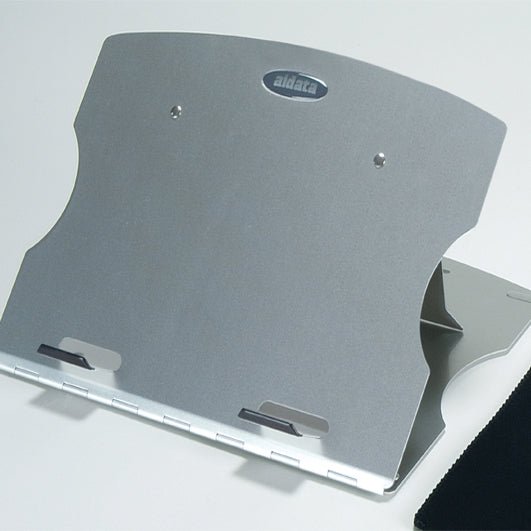
A laptop riser is a platform that raises your laptop's screen so its top edge sits closer to eye level. Laptop risers are generally designed to be light and portable, which makes them useful for people who work from several places. A monitor stand does the same job for an external display, and it usually has a wider, sturdier base that can hold a larger, heavier screen.
Both products solve the same underlying problem: a screen placed too low forces you to look down, and that bends the neck over time. The difference is the size and weight of what they hold, and how much desk space they take up.
Key Differences at a Glance: Comparison Table
The table below compares the two categories on the factors that matter most for daily work. It also lists the five products we carry that fit these uses.
| Factor | Laptop Riser | Monitor Stand |
|---|---|---|
| Best for | Laptop screens, portable use | External monitors, fixed desk setups |
| Typical product | AIDATA LHA3 Laptop Riser (LBP 39), AIDATA NS009 Laptop Riser (LBP 10), AIDATA NS011BG Laptop Riser (LBP 11) | AIDATA MR2001 Monitor Stand (LBP 29), AIDATA SC1 Screen Riser (LBP 20) |
| Adjustability | Angle and height, varies by model | Height, often fixed or stepped |
| Portability | High, many fold flat | Low to medium |
| Extra storage | Rarely | Yes, on some models with a drawer |
| Works with external keyboard | Yes, pair it with a separate keyboard | Yes, ideal for a full desk setup |
Ergonomic Benefits: Screen Height, Eye Level and Neck Strain
The main ergonomic goal is to keep the top of the screen at or slightly below eye level. When the screen sits too low, many people tilt their head forward, which adds load to the neck and upper back. Raising the screen reduces that forward tilt.

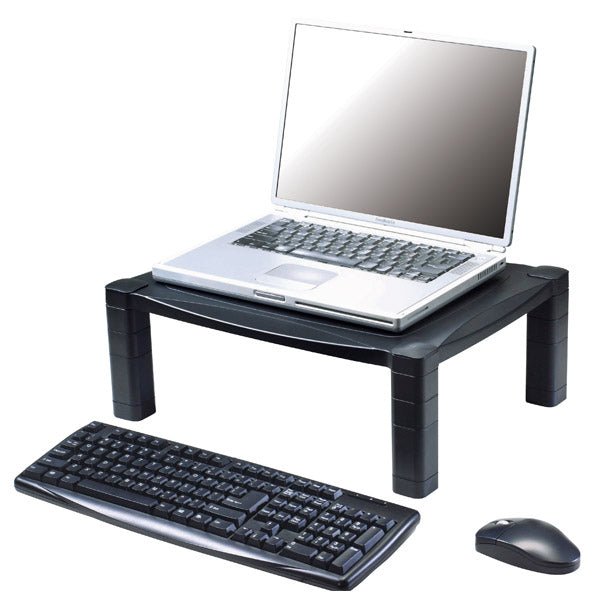
A laptop riser helps most when you use the built-in keyboard less and an external keyboard more. Once the screen is raised, the keyboard should sit low enough that your elbows stay close to your sides and your wrists stay relaxed. That is why many riser users add a separate keyboard and mouse.
A monitor stand supports the same goal with a larger screen. Because the monitor is often placed farther away, getting the top edge to eye level matters even more for avoiding eye strain.
Pros and Cons: Laptop Riser vs Monitor Stand
Laptop riser: pros
- Lightweight and easy to carry, useful for shared or mobile desks
- Low cost, with models starting at LBP 10 in our range
- Keeps the laptop's own screen close to eye level without buying a monitor
Laptop riser: cons
- Raises only one screen, so it does not help a dual-monitor setup
- Smaller, less stable base than a dedicated monitor stand
- Often gives you no extra storage space
Monitor stand: pros
- Sturdy base suited to larger, heavier displays
- Some models include a drawer, which frees up desk space for pens, paper or small accessories
- Works well as a permanent part of a fixed workstation
Monitor stand: cons
- Less portable, so it fits better at one desk than across several
- Takes up more surface area on the desk
- Gives little benefit if you only use the laptop screen
Watch out: A raised laptop with the built-in keyboard in use can push your wrists upward. Pair the riser with an external keyboard and mouse whenever you work for long periods.
Single-Screen or Dual-Screen: Matching the Setup to Your Work
Most guides treat single- and dual-screen setups as an afterthought. In practice, the number of screens you use determines which stand you need and how many of them. Use the decision tree below to match the setup to your work.
If you use one laptop screen only
Choose a laptop riser. It raises the built-in screen to eye level and keeps the setup portable. Pair it with an external keyboard and mouse so your wrists stay low. A monitor stand gives no benefit here because there is no external monitor to hold.
If you use one external monitor only
Choose a monitor stand. It holds the larger, heavier display at a stable height and often provides storage underneath. If you want more room to change positions throughout the day, see how a standing desk converter compares. A laptop riser is not needed unless you also want to raise the laptop as a second screen.
If you use a laptop plus one external monitor
This is the most common dual-screen setup, and it needs two supports. Put the external monitor directly in front of you at eye level. Put the laptop on a riser beside it, angled slightly inward, with its screen at the same height as the monitor. Use the laptop screen for reference material and the monitor for your main work. Match the heights so your eyes do not shift up and down as you switch between screens.
If you use two external monitors
You need two monitor stands, or a single dual-arm monitor mount if your desk allows clamping. Set both screens at the same height and angle them slightly toward you. A laptop riser is not part of this setup unless you add a third laptop screen, in which case place the laptop on a riser at the same height as the monitors.
If you switch between laptop-only and dual-screen work
Choose a laptop riser for the laptop and a stand for the external display. When you work laptop-only, the riser travels with you. When you dock at the desk, the monitor stand holds the external screen and the riser holds the laptop at matching height. This combination covers both modes without buying two separate setups.
Watch out: Placing a laptop riser and a monitor stand at different heights forces your neck to move up and down all day, which can cause more strain than a single low screen. Set both to the same top-edge height before you start working.
How to Choose Based on Desk Space and Productivity Needs
Most buying guides stop at 'pick the one that fits your desk.' That is not enough, because the right choice depends on what your actual workday looks like. Below is a task-by-task comparison you can use to match the stand to the job, followed by a simple decision path for desk space and setup.
Match the stand to your main tasks
Writing and long-form editing. If you spend hours in a word processor, the screen should sit at eye level and the keyboard should stay low.
Coding and frequent window switching. Coding benefits from more screen real estate. A single laptop screen forces constant alt-tabbing, which breaks concentration. If you code on a laptop alone, a riser helps posture but does not solve the screen-space problem.
Video calls. Camera height matters as much as screen height. A laptop riser lifts the built-in webcam closer to eye level, which improves how you appear on calls. A monitor stand does the same for an external webcam or a monitor with a built-in camera.
Research and reading. Reading long documents is easier when the screen is slightly farther away and at eye level. A monitor stand with a larger display reduces scrolling and eye movement.
Spreadsheets and data entry. Wide tables need horizontal space. A monitor stand with a wide external monitor is the better fit. A laptop riser keeps the laptop screen usable but does not widen it.
A simple decision path for desk space
Start with the footprint. A laptop riser typically needs only the area of the laptop itself, so it fits small desks, shared tables and temporary setups. A monitor stand needs a stable base area and, on drawer models, clearance to open the drawer fully.
Next, count your screens. If you use one laptop screen only, a riser is the lower-cost, lower-footprint choice. If you use one external monitor, a monitor stand is the natural fit. If you use two screens, you need two supports, and the stands should match in height so your eyes do not shift up and down as you move between them.
Finally, think about movement. If the setup stays in one place, a monitor stand with storage makes sense because it frees desk space permanently. If you move between rooms or offices, a foldable riser is easier to carry and set up.
Watch out: A riser that is too tall for your chair and desk combination can push the screen above eye level, which is just as straining as a screen that is too low. Adjust the chair height first, then set the stand.
Setting the Right Monitor Height and Building Your Setup
To set the height, sit comfortably with your back supported and your feet flat. For a broader walkthrough of arranging the whole workspace, see the ergonomic office setup guide for Lebanon. The top edge of the screen should sit at or just below eye level, and the screen should be about an arm's length away. Adjust the angle so you look straight ahead, not down or up.
A complete setup usually includes the stand, an external keyboard and mouse, and a chair that lets your elbows rest near a 90-degree angle. You can also add a cable tidy or drawer organiser to keep the desk clear. For a full office arrangement, you can compare our AIDATA SC1 Screen Riser with other height options, and our AIDATA LHA3 Laptop Riser if your work stays on a laptop.
Start with one change this week, such as raising your screen to eye level. Then notice how your neck and eyes feel after a full working day. Small adjustments like this add up to a more comfortable and productive workspace.
Frequently Asked Questions
Is a laptop riser or monitor stand better for productivity?
Neither is better in every case. A laptop riser helps when you work mainly on the laptop screen and want it at eye level, paired with an external keyboard and mouse. A monitor stand suits people who work on an external monitor and want to free desk space underneath. Choose based on which screen you look at most and how much desk room you have.
What is the difference between a laptop riser and a monitor stand?
A laptop riser lifts a laptop so its screen sits higher, usually with a compact, portable footprint and adjustable angles. A monitor stand supports a larger external display, often with added height range and sometimes storage space underneath. Laptop risers suit small, mobile setups, while monitor stands suit fixed desks with a dedicated screen.
Can you use a laptop riser with an external monitor?
Yes. Many people place a laptop on a riser beside an external monitor, or use the riser for the laptop while the monitor sits on its own stand. The goal is to keep both screens at a comfortable height and distance. Check that the riser's weight rating and footprint suit your laptop and leave room for your keyboard and mouse.
What height should a laptop or monitor screen be?
The top edge of the screen should sit at or just below eye level, so your gaze falls slightly downward. Keep the screen about an arm's length away. When the screen is too low, people tend to bend their necks; when it is too high, shoulders can tighten. Adjust in small steps until your neck stays relaxed while typing.


